Search
One search that finds people, discussions, files, events and spaces.
- Results as you type
- Finds by meaning as well as words
- Shows only what a member may see

Step by step
How it works
From the first two letters to the right result.
Step 1
Start typing
From any page. Results appear after two letters, grouped by kind.
Step 2
See every result
Press Enter for the full page, with a tab and a count for each kind.
Step 3
Narrow it down
By space, topic, date, or questions that are answered or not.
Step 4
Still nothing? Ask
For a longer question, a link offers to ask the AI assistant instead.
Members find it the first time
A member searching for “leaver rates” also finds the discussion titled “attrition benchmarks”. Search matches what a member means as well as the exact words they typed.
One box for everything
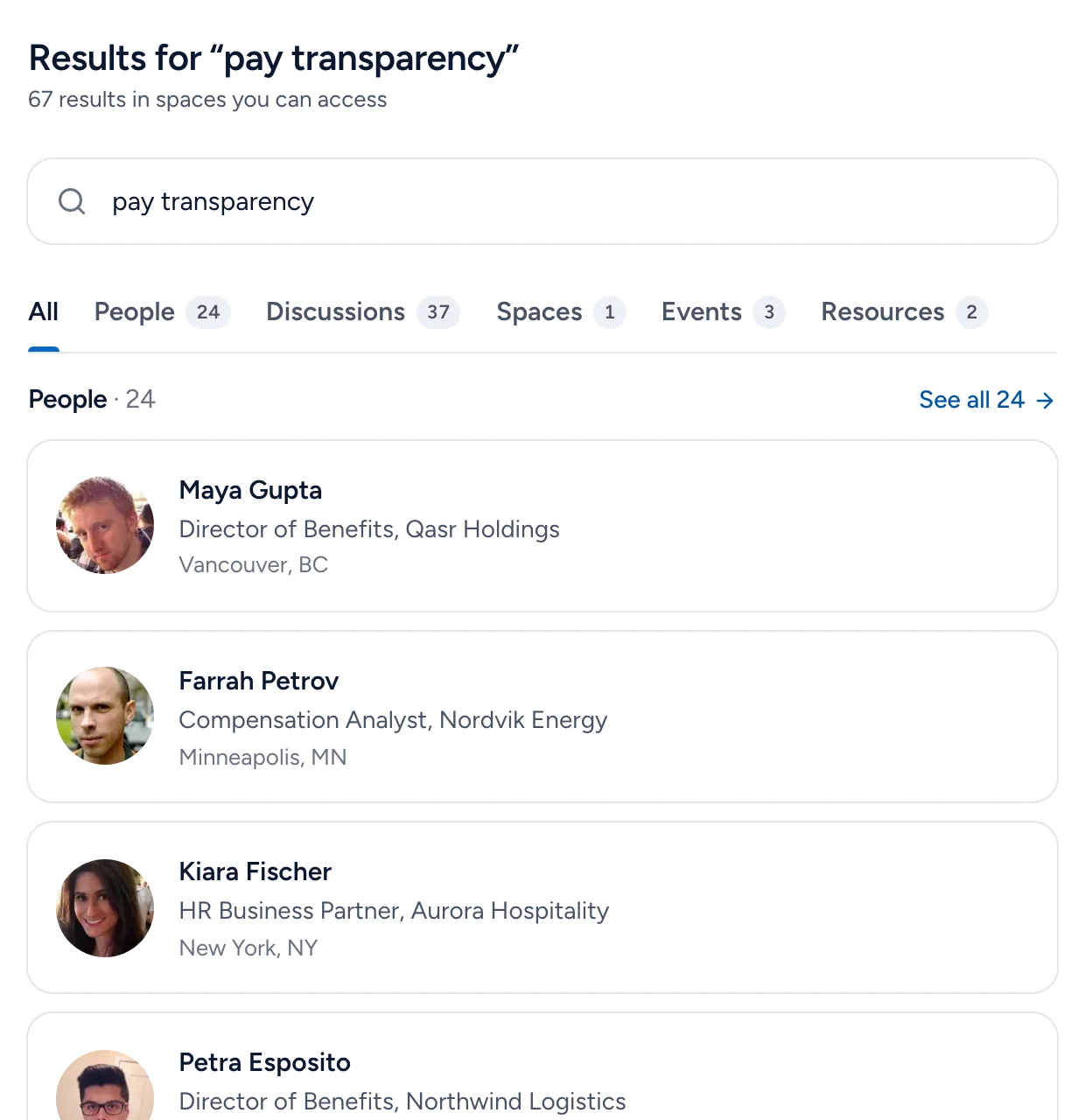
People, discussions, files, events and spaces come back from a single search, grouped so a member can see at once which kind they need.
You learn what is missing
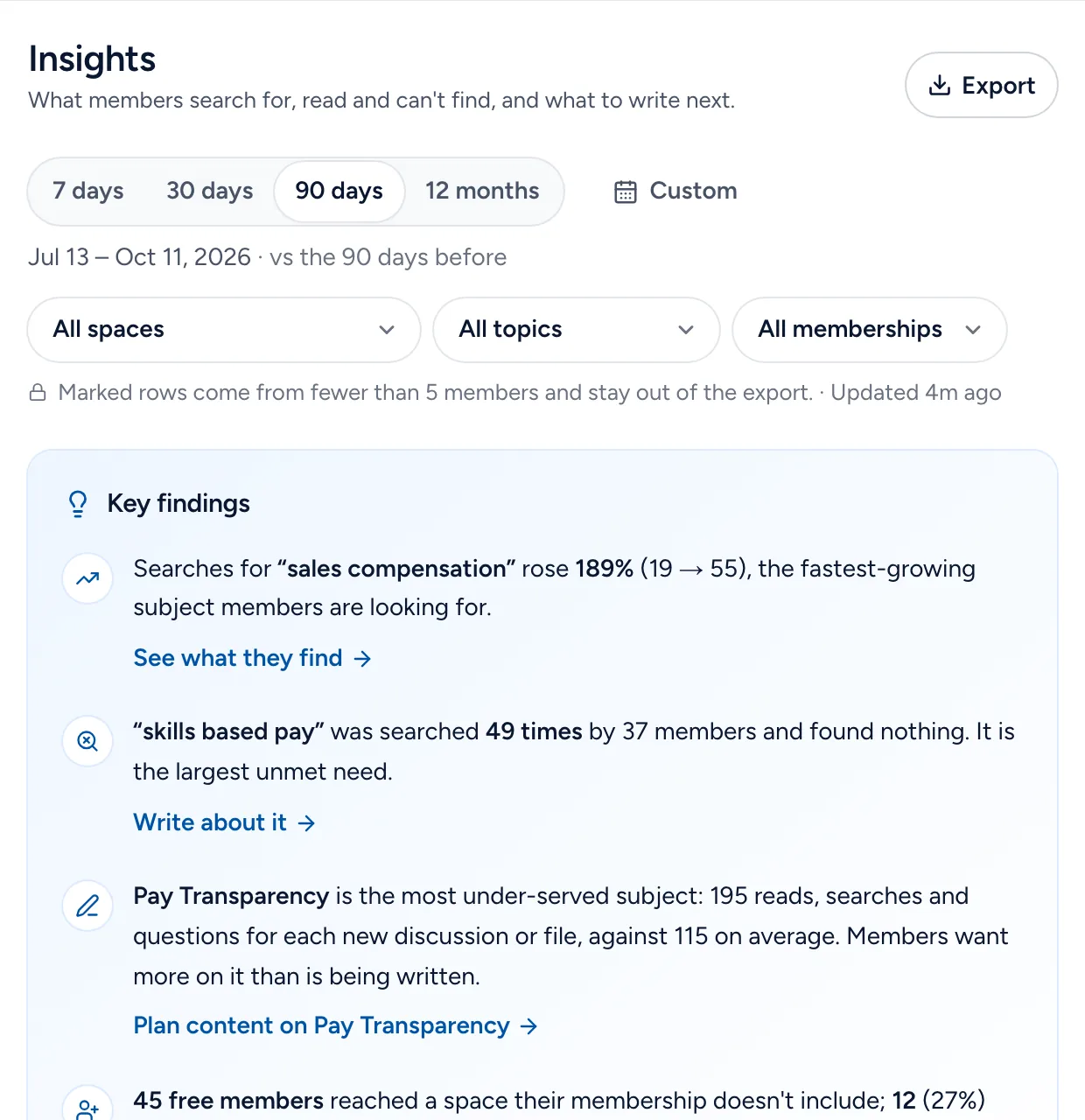
Staff see what members searched for and which searches found nothing. That list tells you what to write, record or ask an expert about next.
By meaning
Finds what a member means
Every search runs two ways at once, by the words typed and by their meaning, and the two lists are combined. A discussion that uses different words for the same thing still appears, marked “Related”. Answered questions and active discussions are shown higher. AI then checks the first page to put the most relevant results first.
- Results by words and by meaning, combined
- Answered and active discussions ranked higher
- A match inside a reply opens at that reply
Your vocabulary
Understands the words your profession uses
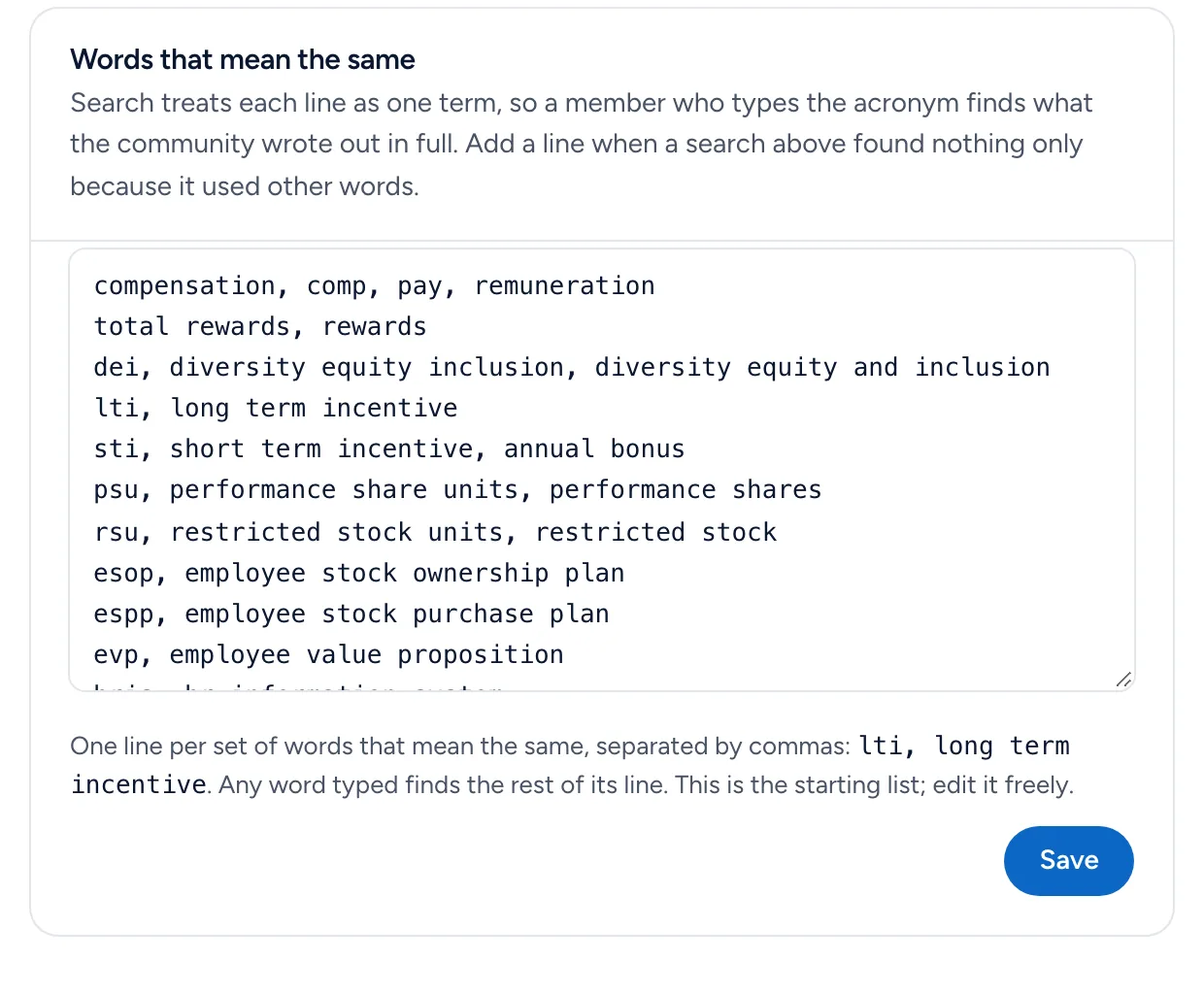
You keep a list of terms that mean the same thing, such as “LTI” and “long-term incentive”. Search treats them as one. When a misspelt search finds nothing it is corrected, and the member is told which word was used.
- Your own list of terms that mean the same
- Spelling corrected when a search finds nothing
- Exact phrases in quotes, and words to leave out
For your staff
See what members looked for and did not find
The insights page lists what members searched for, split into searches that found results and searches that found nothing, with how many members searched for each. Staff see the terms and the counts but never who searched.
- Searches that found nothing, with how many members tried
- Compared with the period before
- Terms and counts only, never the member’s name
See it with your own association’s name on it
We set up a demo for you and answer your questions. Or open the live demo and look around on your own.
How it differs from a basic forum search
Most community search looks for the exact words typed in post titles. When a search fails, nobody is told.
Different words, same subject
A basic forum search
Not found
One Roof
Found by meaning and marked “Related”
What it covers
A basic forum search
Posts only
One Roof
People, discussions, replies, files, events and spaces
A spelling mistake
A basic forum search
No results
One Roof
Corrected, and the member is told
Your profession’s short forms
A basic forum search
Treated as unknown words
One Roof
Matched from a list you keep
Private spaces
A basic forum search
Often leak into results
One Roof
A member sees only what they may open
A search that fails
A basic forum search
Nobody knows
One Roof
Listed for staff, with how many members tried
In detail
What is included
For members
Quick search
Open it from any page with a keyboard shortcut, and results appear as you type.
Five kinds of result
People, discussions, spaces, events and files each have their own tab.
Inside replies
A match in a reply or the accepted answer is found and linked.
Filters
Narrow by space, topic, type, date, and answered or unanswered.
Finding more
By meaning
Search also finds discussions and files that say the same thing in other words.
Same-meaning terms
You keep a list of terms that mean the same, so short forms and full names match.
Spelling
A search that finds nothing is tried again with the spelling corrected.
Exact phrases
Use quotes for a phrase, OR for either word, and a minus to leave one out.
For your staff
Search report
The report shows what members searched for, by period and member type.
Found nothing
The searches with no result are listed, with how many members tried each.
Private
The report holds counts only. Searches for a person’s name are left out.
Export
The search report downloads as a CSV file.
Questions
What teams ask about it
What does search cover?
Five kinds of result, from one search box:
- People
- Discussions and their replies
- Spaces
- Events
- Files
News, chapter pages and private messages are not included.
Does it search inside files?
Search matches a file’s title and description. The text inside PDF, Word, PowerPoint and Excel files is read by the AI assistant, which answers from it and links to the file.
How does searching by meaning work?
Discussions and files are compared by meaning as well as by words. A search can then find a discussion that uses different words for the same subject, and these results are marked “Related”. If that service is unavailable, search still works on words alone.
Can a member find something they should not see?
No. Results come only from spaces the member is allowed to open, and the author of an anonymous post is not shown.
Do staff see who searched for what?
No. Staff see search terms and how many members used them. Searches for a person’s name are left out, and terms used by only a few members are kept out of the export.
Can we add our own terms?
Yes. You keep a list of terms that mean the same thing, and search matches any of them. It starts with a few common ones.