Member directory
Find the member who has already solved what you are working on.
- Search by expertise
- People to meet and why
- Members control what is shown

Find people by what they know
Members list what they know. A search for a subject then finds the people who work on it, whether or not the word is in their job title.
Useful suggestions of people to meet
Each member is shown a few people to meet, with the reason: a shared subject, the same region, or a different employer in the same sector.
Members control their privacy
Only signed-in members see the directory. A member chooses whether they appear in it and on the map, and who may message them, and can block anyone.
Step by step
How it works
Members spend a minute on a profile, and the directory does the rest.
Step 1
Members say what they know
Expertise, credentials, employer and region, added to what your membership system already holds.
Step 2
Search, filter or browse the map
Search by name, job title, employer or expertise, and filter by region, industry or credential. View the directory as a grid, a list or a map.
Step 3
People to meet are suggested
A few at a time, with the reason. A suggestion that a member dismisses is not shown again.
Step 4
Connect or send a message
A connection is requested and accepted. Messages follow the rule you set for who can message each other.
The map
See who is near you or near your next trip
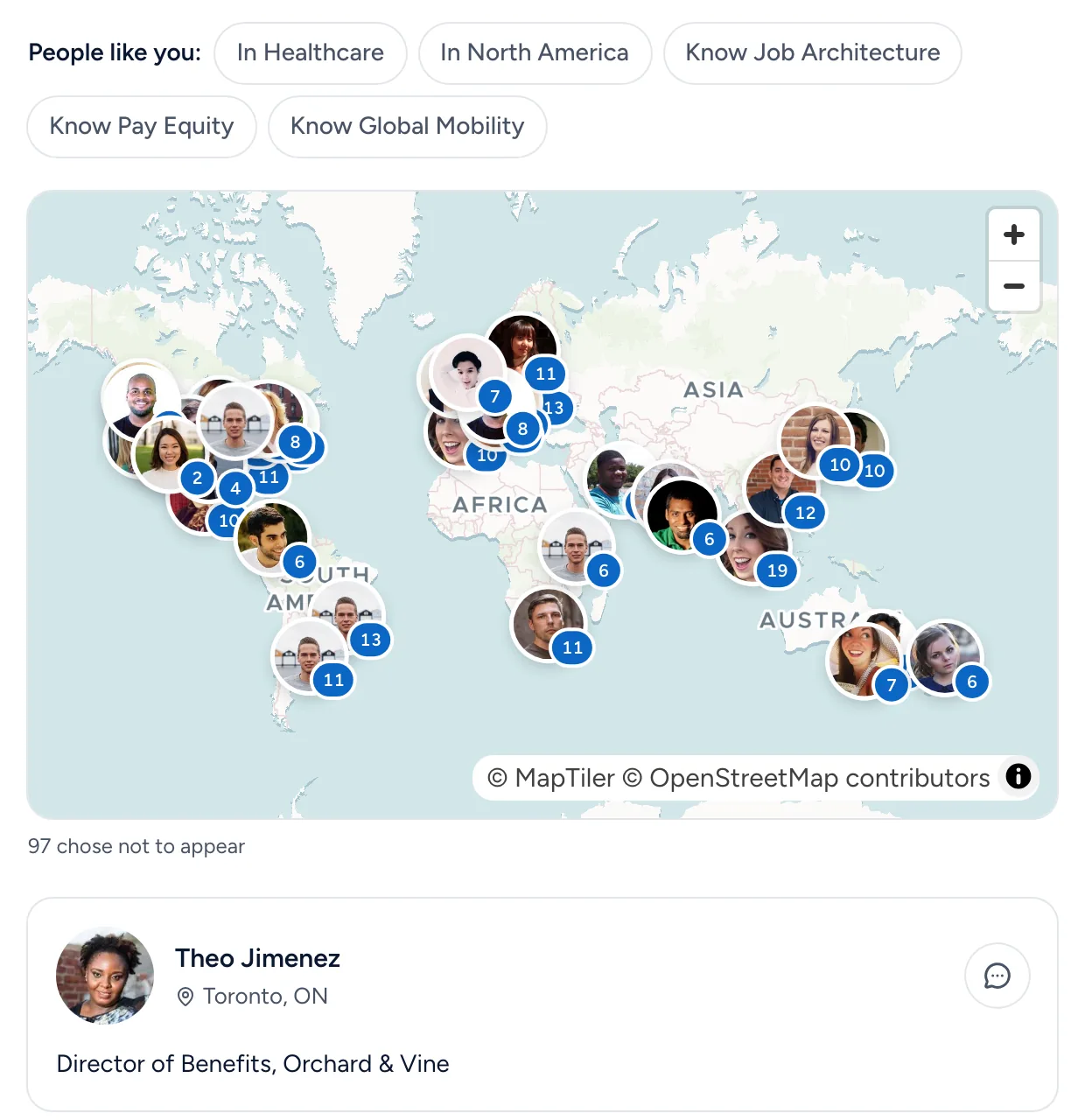
The directory can be viewed as a map as well as a list. Each pin is a city, and choosing one shows the members in it, with a way to message them. A member travelling to a conference, or new to a region, can quickly find colleagues there.
- A pin for each city, with the members in it
- Open a pin to see profiles and send a message
- Only a city is ever shown, never an address, and only for members who chose to appear
The profile
Profiles that show real expertise
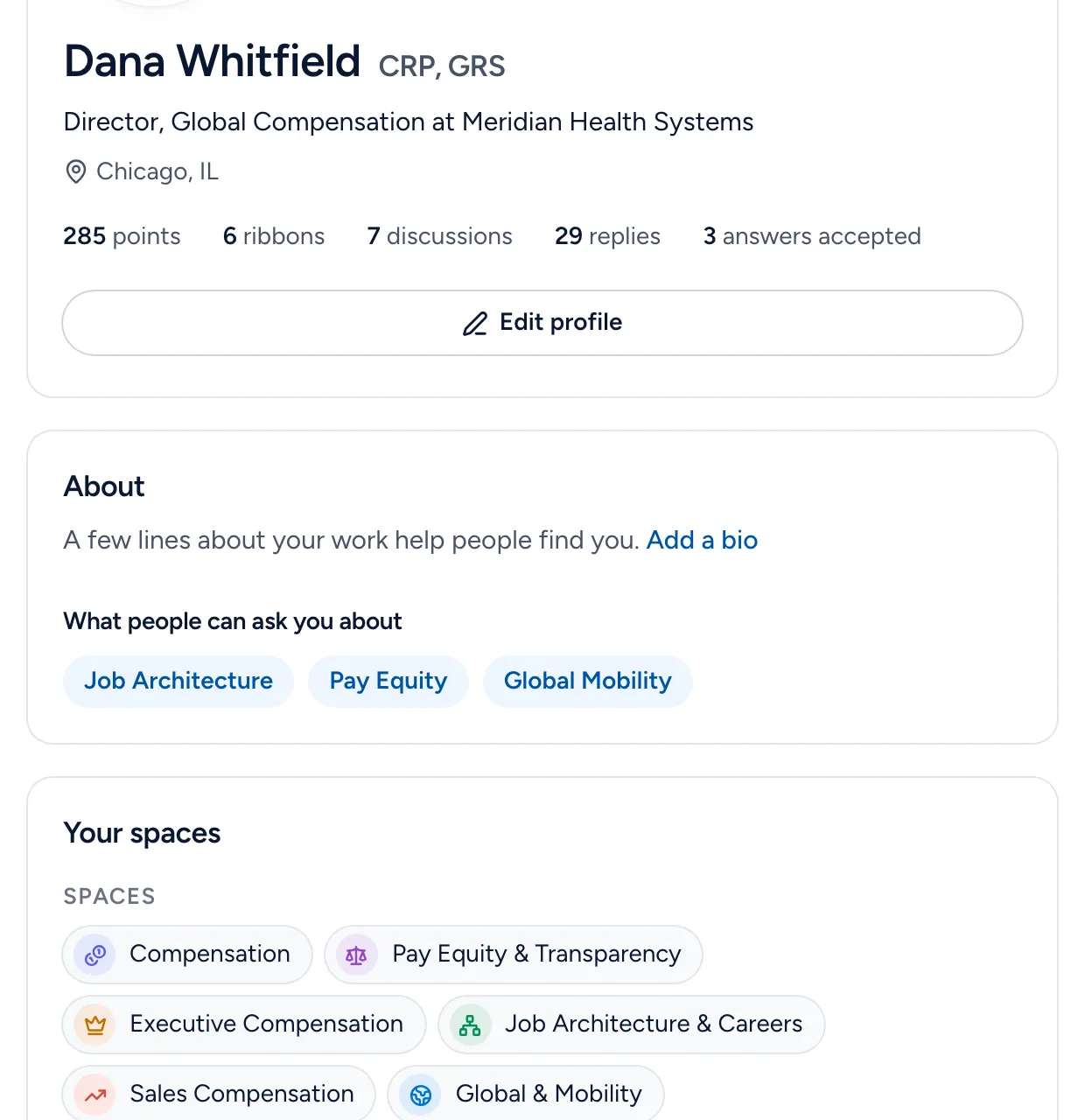
A profile shows a member’s role and employer, their credentials, what they know and what they have contributed. This helps other members decide whose answer to trust.
- Expertise and credentials on every profile
- Ribbons earned for contributions
- Connections you have in common
Messaging
Private messages under rules you set
Members can message each other directly, within the rule you set for who may message whom. A member can turn messages off, and a block applies everywhere: in messages, in suggestions and in mentoring.
- You set who can message each other
- Members can turn messages off
- Blocking that applies across the community
See it with your own association’s name on it
We set up a demo for you and answer your questions. Or open the live demo and look around on your own.
In detail
What is included
Finding people
Search
Find a member by name, job title, employer or expertise.
Filters
Narrow the list by region, industry and credential.
A map
Members appear by place, if they chose to be on it.
People to meet
Suggestions come a few at a time, each with its reason.
Staying in touch
Connections
One member asks and the other accepts. The connections you have in common are shown.
Messages
Members write to each other, under rules you set.
Recognition
Members earn points and ribbons, and appear on the leaderboard if they want to.
Employer accounts
People at the same employer are suggested to each other.
More than a list of names
Most member directories are a search box on top of the membership database. This one is built so members can find someone who can help.
What you can search
A database directory
Name, company, city
One Roof
What a member knows, as well as their job title
Meeting someone new
A database directory
Up to you
One Roof
A few suggested, with the reason
Privacy
A database directory
Listed in full, or not listed at all
One Roof
Members only, and each member chooses whether they appear in it, on the map, and who may message them
Getting in touch
A database directory
An email address
One Roof
A connection or a message, under your rules
Keeping it current
A database directory
An annual update form
One Roof
From your membership system, and from what members do
Questions
What teams ask about it
Where does profile information come from?
The basics, such as name, employer and member type, come from your membership system. Members add what only they know: expertise, credentials, a few lines about themselves and links.
Who can see the directory?
Signed-in members only. A visitor is not shown the directory, member profiles, the map or the leaderboard.
Can a member hide from the directory?
Yes. A member who turns off "Show me in the member directory" is not listed, found by search, shown on the map or suggested to others. They still appear on their own posts. A member also controls:
- Whether they appear on the map
- Whether others can message them
- Whether they appear on the leaderboard
They can also block another member, which applies everywhere.
How are people to meet chosen?
From what members have in common: expertise, region, industry and employer. The reason is always shown, and a suggestion a member dismisses is not shown again.
Who can message each other?
You choose one of four rules for your community:
- Any member
- Any member, with a first message that must be accepted
- Connections only
- Off
Each member can also turn messages off for themselves.
Is there a map?
Yes. The directory can be viewed as a grid, a list or a map of members by place, showing only those who chose to appear.
Can we see the members of one employer together?
Your staff can. Each employer account lists its members, with seats used and when they were last active. Members see the employer on a profile, and people at the same employer are suggested to each other.